Convert a STEP file to STL
Drop in a .step or .stp from your CAD tool and get an STL for your slicer, in millimetres. Converted on your own machine.
Drop your STEP file here
Runs entirely in your browser. Your file is never uploaded, and there is no sign-up.
How to convert STEP to STL
- Drop your .step or .stp or .iges or .igs file onto the panel, or click to browse for it.
- The file is read and converted on your own machine. Nothing is uploaded to a server.
- Download the STL file. You get binary .stl in millimetres.
Why a slicer needs STL, not STEP
A STEP file stores the exact shape of a part: a hole is a true cylinder and a fillet is a true curve. A slicer cannot work with that. It needs a closed surface made of triangles, which is what STL is. Converting means choosing how finely to cut each curve into flat triangles.
This converter keeps every triangle within 0.05% of the part's size of the true surface. On a 100 mm bracket that is 0.05 mm at most, a quarter of a typical FDM layer, so the facets do not show in the print.
STEP and STL compared
| STEP | STL | |
|---|---|---|
| Geometry | Exact surfaces | Flat triangles |
| Units | Stored in the file | None stored, slicers assume mm |
| Several parts | Named bodies in an assembly | One unnamed mesh |
| Colour | Per body | None |
| Editable in CAD | Yes | Hardly |
| Printable | Only by slicers that convert it | Everywhere |
Before you print
- Keep the STEP file. It is your exact master; the STL is a copy for one job.
- Check the size bar under the viewer. It shows the part in millimetres, as the slicer will.
- An IGES file from an older CAD system can have small gaps between surfaces. If the slicer reports holes, run the STL through the STL repair tool.
Your file never leaves your browser
This tool is JavaScript running on your own machine. Your file is read into memory, processed there, and gone when you close the tab. It is never sent to us, so there is no upload, no queue, no retention period, and no account to create. You can disconnect from the network after the page loads and it will still work.
No 3D model yet?
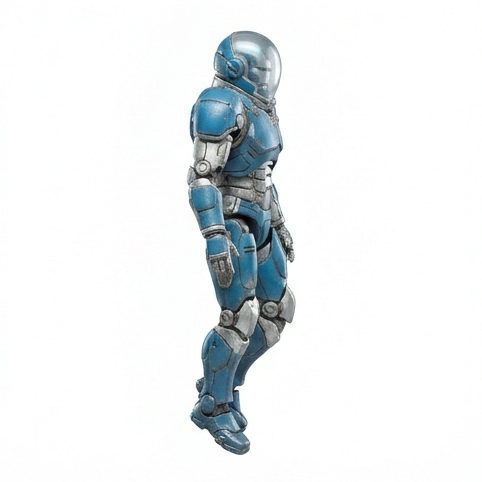
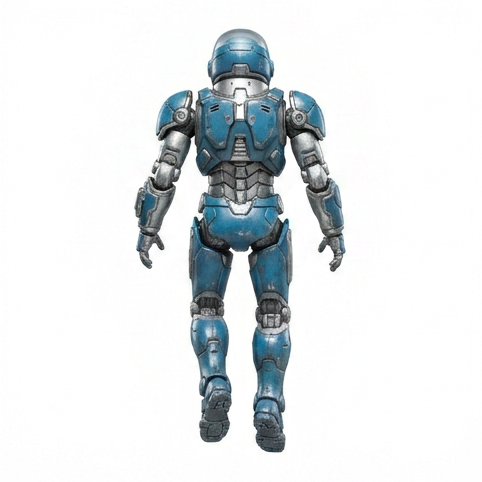
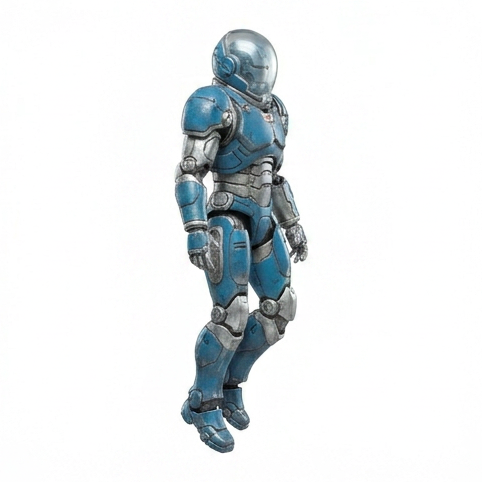
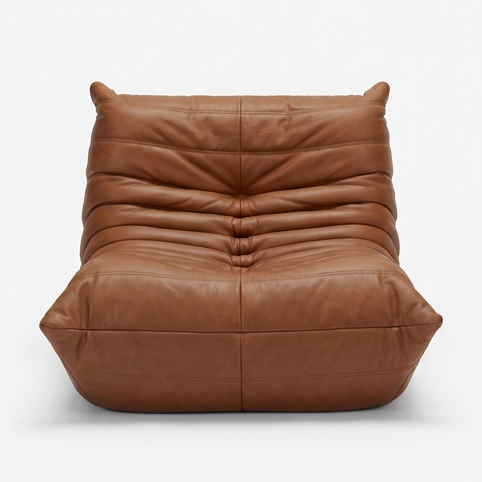
Turn a single product photo into a realistic 3D model, usually in about 5 minutes. Explore it, view it in AR at real size, embed it, or export it to any of 7 formats. Make your first model for $2.
Your first model is $2, refunded in full within 14 days if you do not like it. Try it with a sample photo
Frequently asked
How do I convert a STEP file to STL?
Drop the .step or .stp file on this page. OpenCascade, the same geometry kernel FreeCAD uses, runs in your browser and turns the exact CAD surfaces into triangles. Download the .stl and open it in your slicer. Nothing is uploaded and nothing needs installing.
Will the STL be the right size?
Yes. A STEP file records its own unit, and the converter writes the STL in millimetres, which is the unit every slicer assumes. A 50 mm part arrives as 50 mm, standing the way it was modelled, with Z up.
Why does my STL look faceted on curves?
STL can only store flat triangles, so every curve becomes many small flat faces. This converter keeps every triangle within 0.05% of the part's size of the true surface, which prints smooth on any FDM or resin printer. The STEP file stays exact; keep it as your master.
Can I convert IGES files too?
Yes. Drop an .iges or .igs file and it converts the same way. IGES is the older CAD exchange format, and some files from older systems carry surfaces with gaps between them, which can leave small holes in the STL. Run it through the STL repair tool if your slicer reports them.
Is the file uploaded?
No. The STEP file is read by a WebAssembly build of OpenCascade inside your browser. That reader is about 7.6 MB and downloads the first time you open a CAD file. Your file itself never leaves your machine.
Does it keep multiple bodies and colours?
Every body in the assembly is converted and placed where the STEP file puts it, as one STL. Colours are dropped, because STL has nowhere to store them. If you need one STL per part, export the parts separately from your CAD tool.
Made with 2dto3D
See the full gallery





Last updated 2026-11-06